- Click “Login” button at https://ezbeli.com.my/my-account/
- Login using your existing credentials.
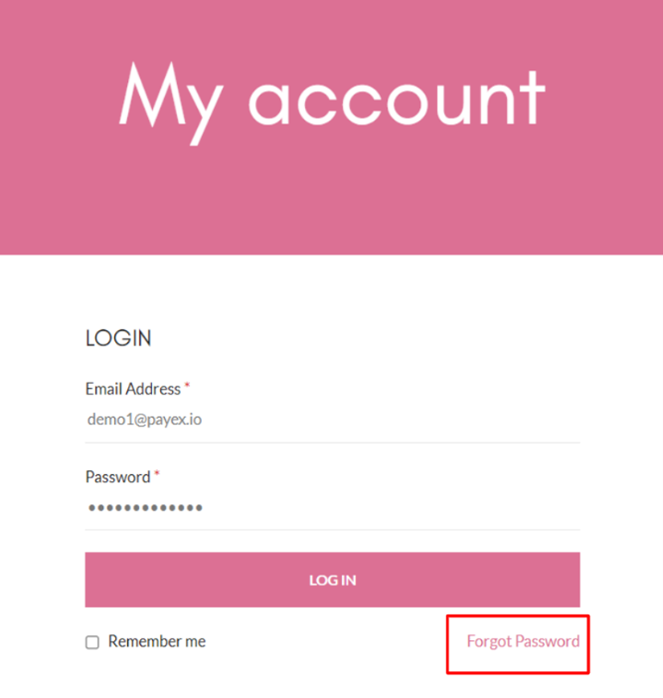
- For first-time login, don’t forget to reset your password by clicking “Forgot Password” at the login page.
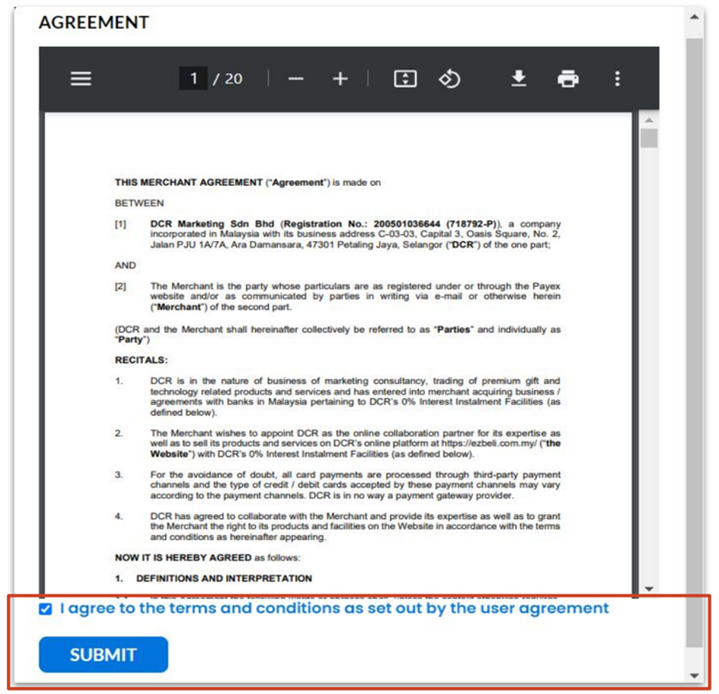
- For first-time login, you will need to check the box to indicate agreement to T&C set out by the user agreement.
2. Edit logo & company name
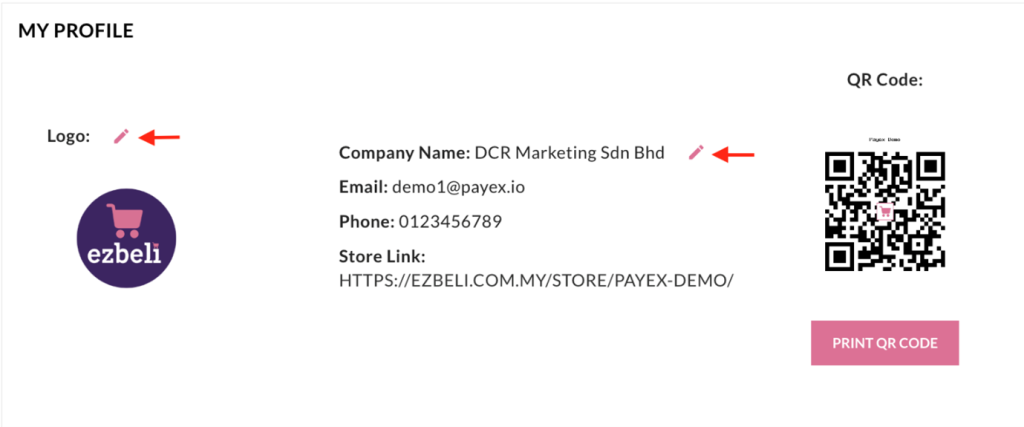
- Click “Pencil” icon button and upload new logo if needed.
- Click “Pencil” icon button and edit the company name if needed.
3. Search for products added on catalogue
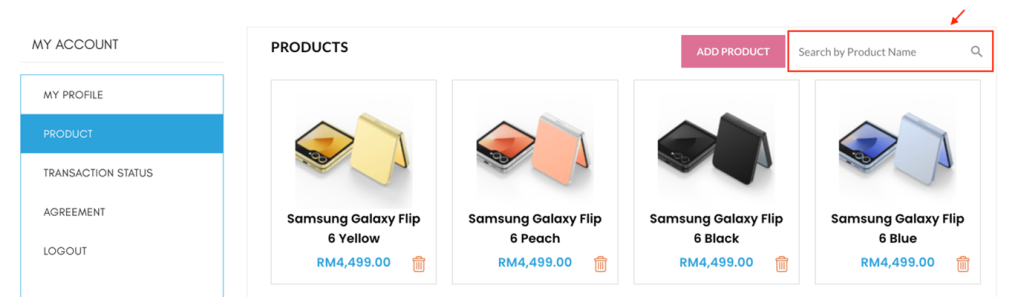
- Click on the search bar and type in product name to search for products added in your shop.
4. Search for transaction status
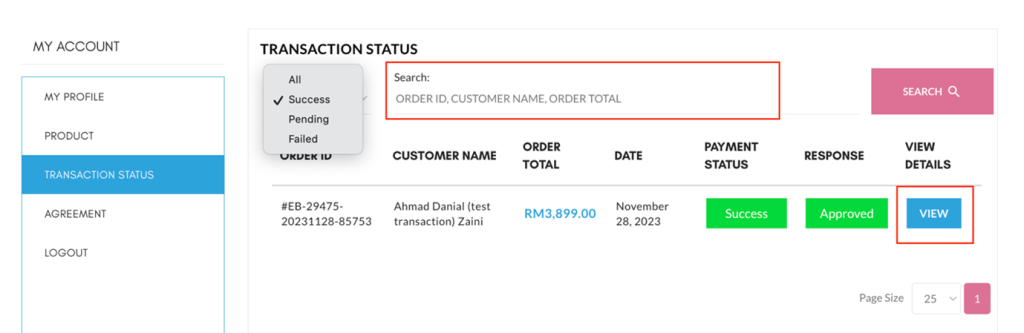
- Click on Filters to to view successful, pending or failed transactions.
- Click on the Search bar and type in Order ID, Customer Name or Order Total to search for specific transactions.
- Click “View” to view additional customer details and order details.
- Click “Login” button at https://ezbeli.com.my/my-account/
- Login using your existing credentials
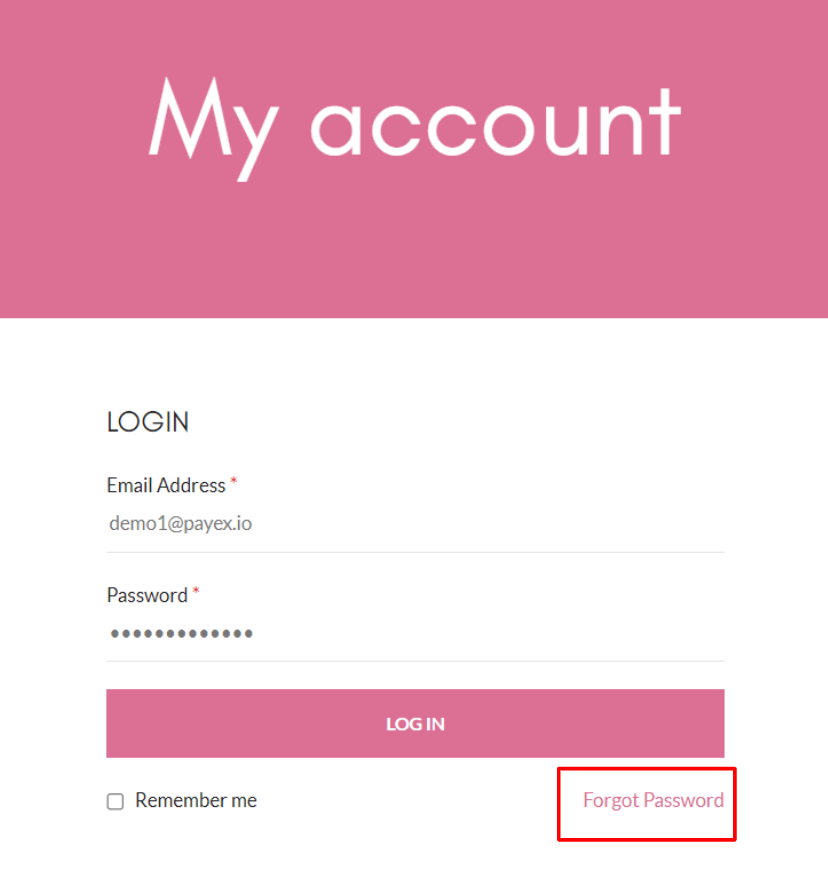
- For first-time login, don’t forget to reset your password by clicking “Forgot Password” at the login page
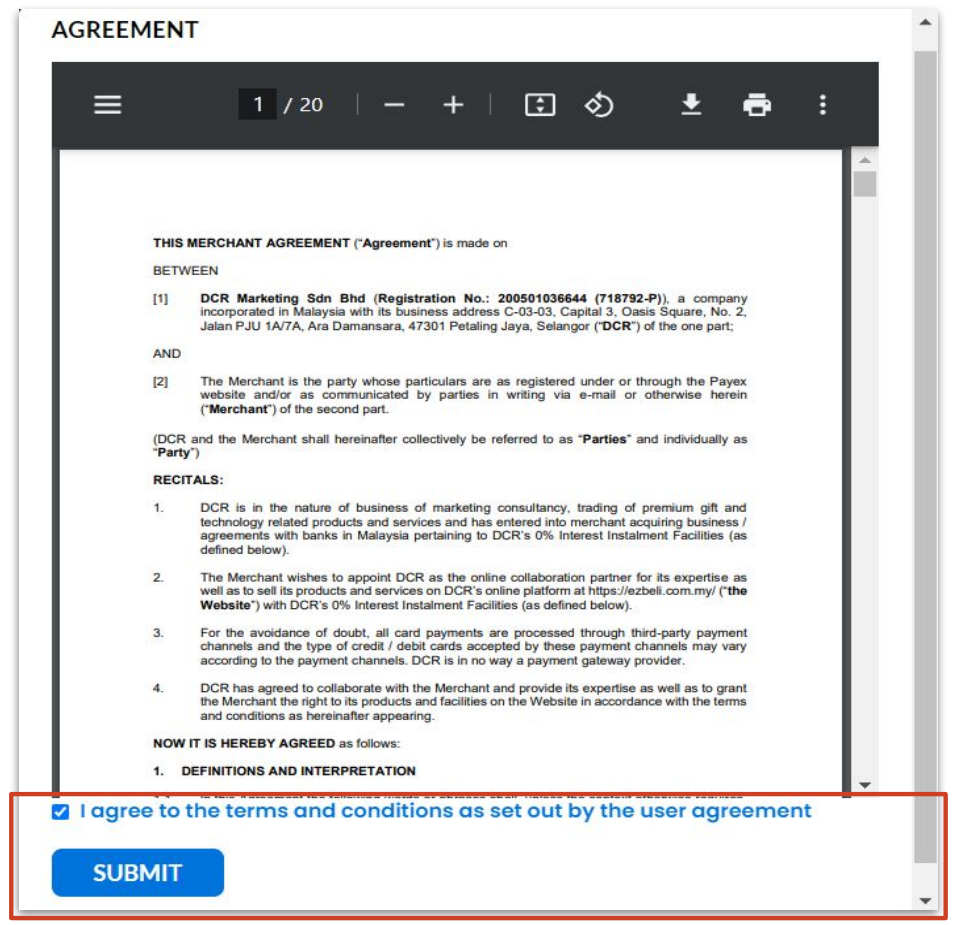
- For first-time login, you will need to check the box to indicate agreement to T&C set out by the user agreement
Step 2: Add product and fill out the product details (allow up to 48 working hours for approval)
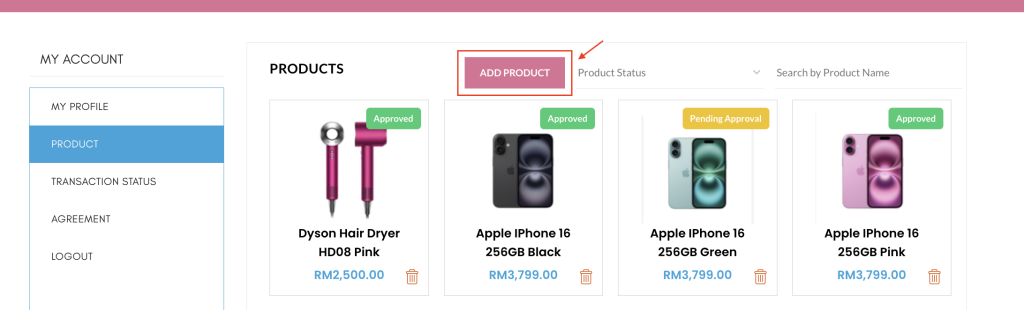
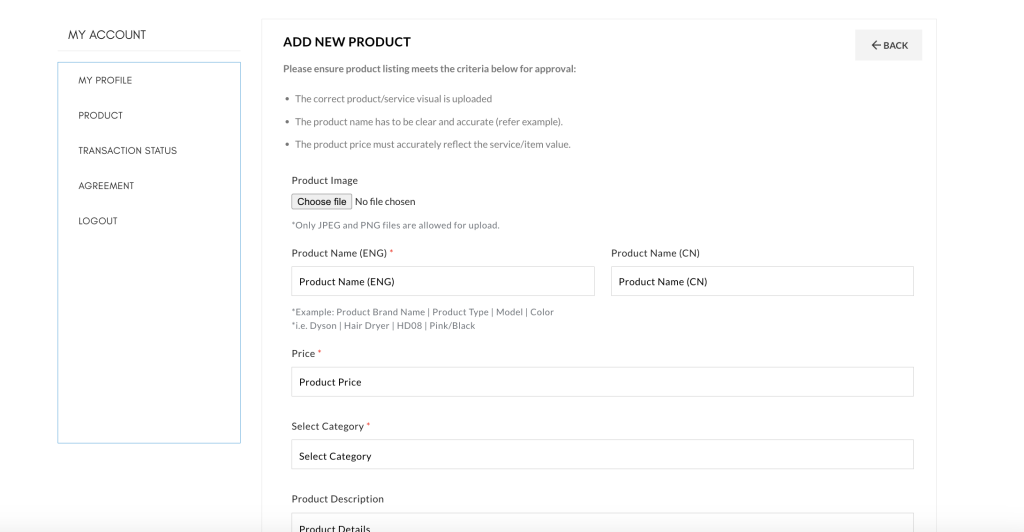
- Go to the “Product” tab.
- Click “Add Product”
- Please ensure product listing meets the criteria below for approval:
- The correct product/service visual is uploaded in the Product Image
- The product name has to be clear and accurate, refer example stated above
- The product price must accurately reflect the service/item value
- Fill out payment details

- Click “Submit for Approval” and allow up to 48 working hours for approval by the Ezbeli management team.
Once product is approved, 2 types of product links will be displayed, you may choose the one preferred:
- Product URL – a link where your customer can view product image, change quantity and add to cart before proceed to checkout
- Checkout URL – a link where your customer can proceed to fill out basic details and pay directly
 Note:
Note:
For all future urgent product links case, it’s advisable take note of the 48 hours approval period / contact Ezbeli team for faster approval at 03-7832 6103 / enquiries@dcr.com.my.
Step 3: If products are rejected, update is required (allow up to 48 working hours for approval by Ezbeli)
- You will be notified by Ezbeli via email if a product is rejected and what action is required
- If a product is approved by Ezbeli, you may skip to Step 4
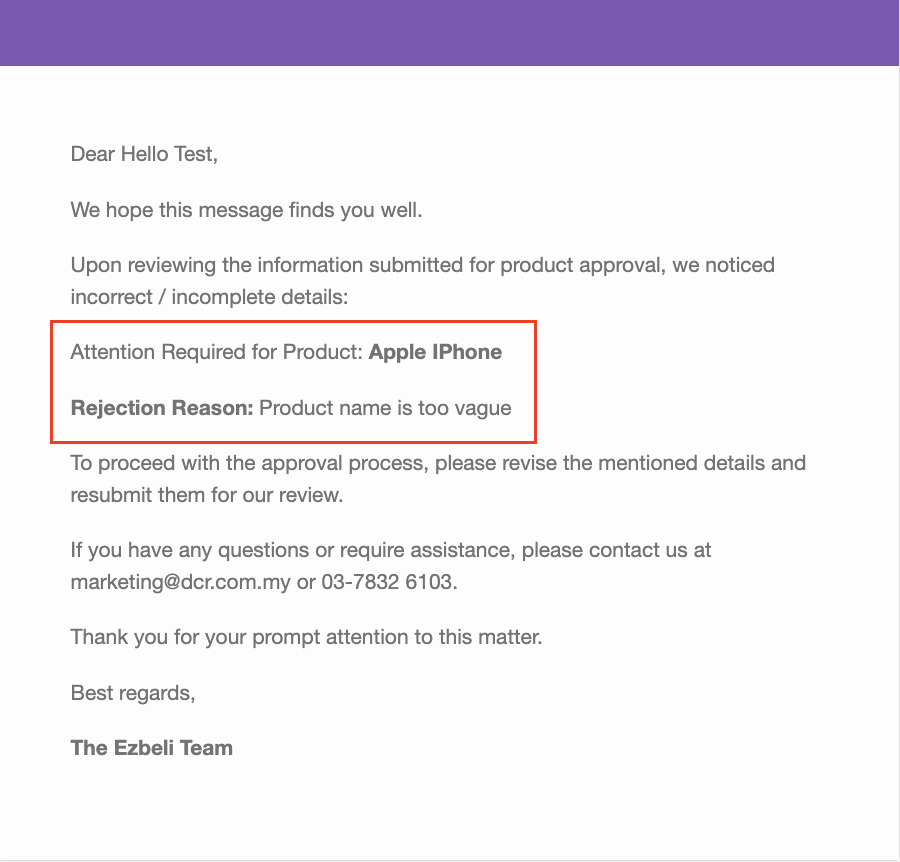
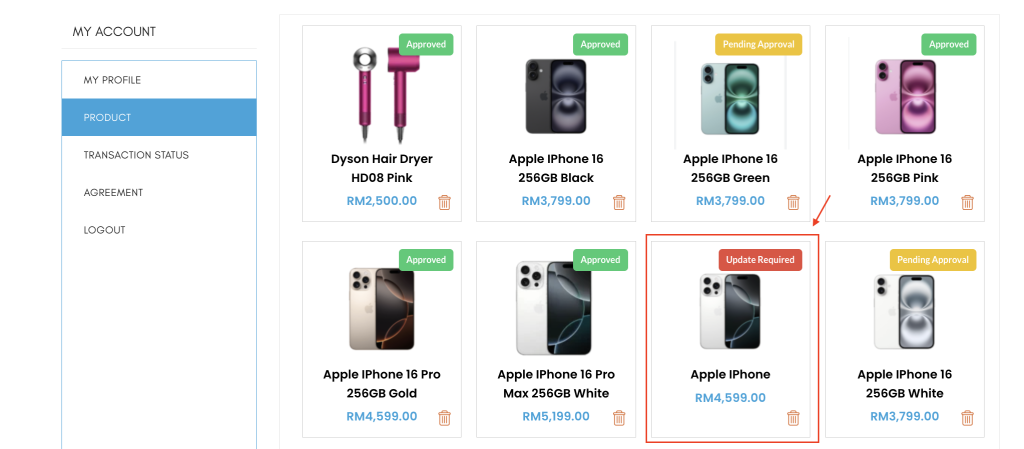
- If a product is rejected by Ezbeli, click into the rejected product
- The reason for rejection will be stated
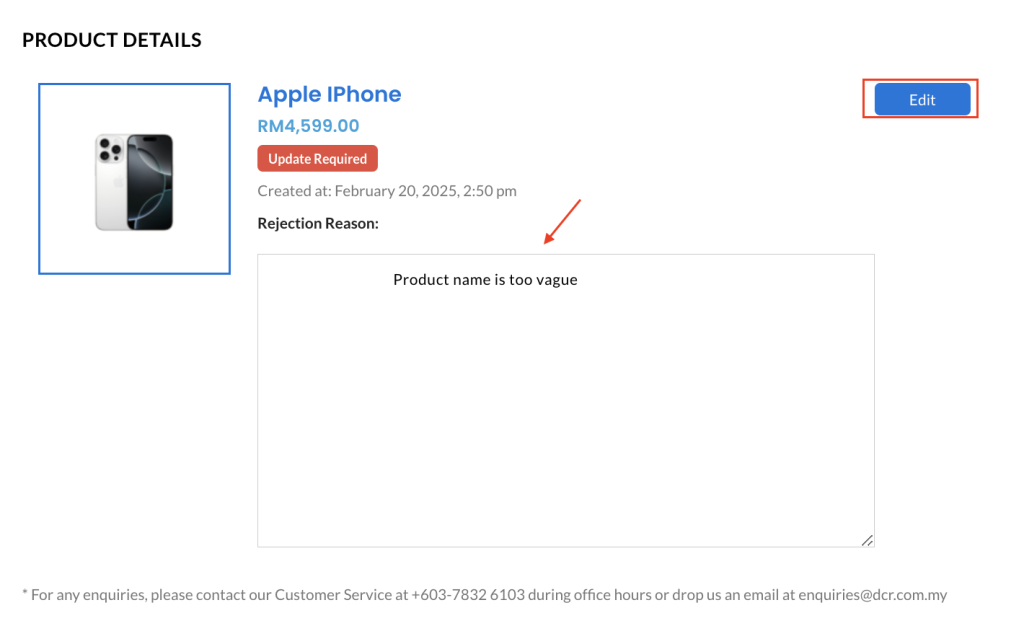
- Once rejection reason has been identified, click “Edit” to make the necessary changes.
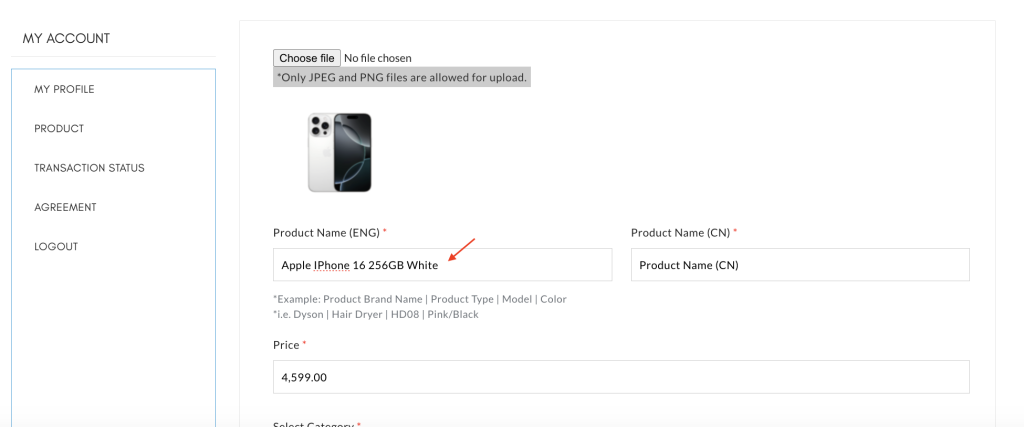
- Click “Update Product” and allow up to 48 working hours for approval by Ezbeli.
Step 4: Once product is approved, share the product link
2 types of product links will be displayed, you may choose the one preferred:
- Product URL – a link where your customer can view product image, change quantity and add to cart before proceed to checkout
- Checkout URL – a link where your customer can proceed to fill out basic details and pay directly
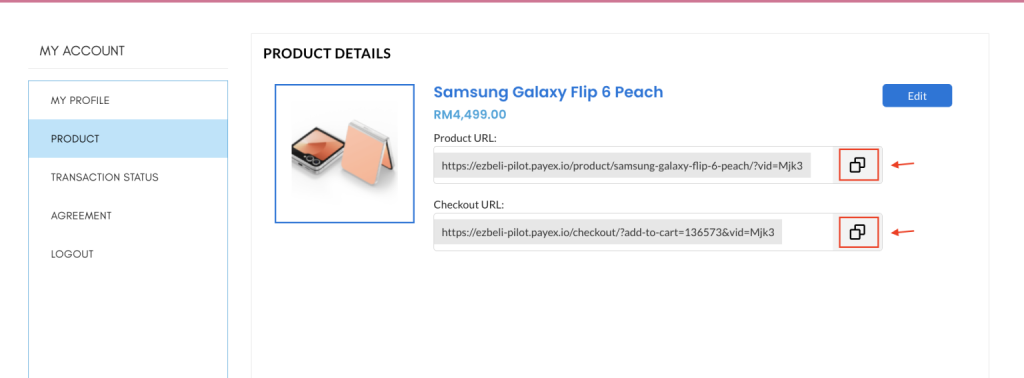
- You may click the “Copy” icon to copy the product link (Product URL / Checkout URL) and share to your customer
- If you happened to lose your product link, you may retrieve it under the “Product” tab
Edit Product
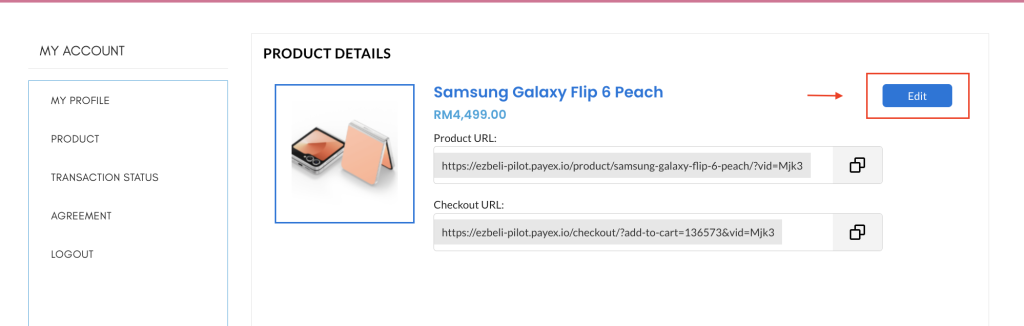
- Click the ‘Edit‘ button to make changes to the product previously added.
- Please note that edited products are subjected to the approval process for up to 48 working hours.
Deactivate Product
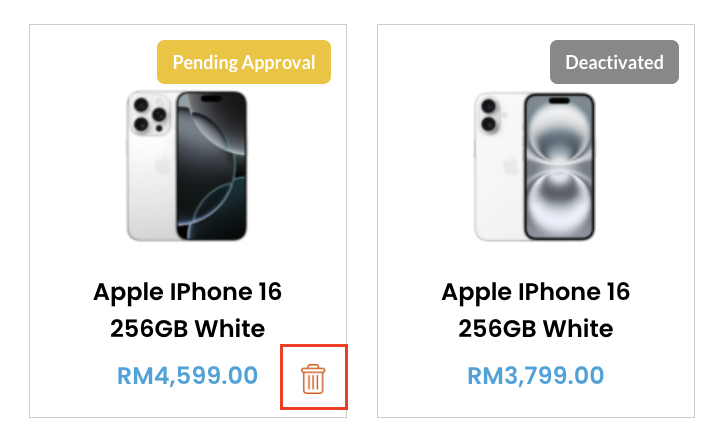
- Click the ‘Trash Bin” icon to deactivate the product added from your merchant account
- Kindly note that deactivated products cannot be reactivated.
Step 4: Monitor transaction status
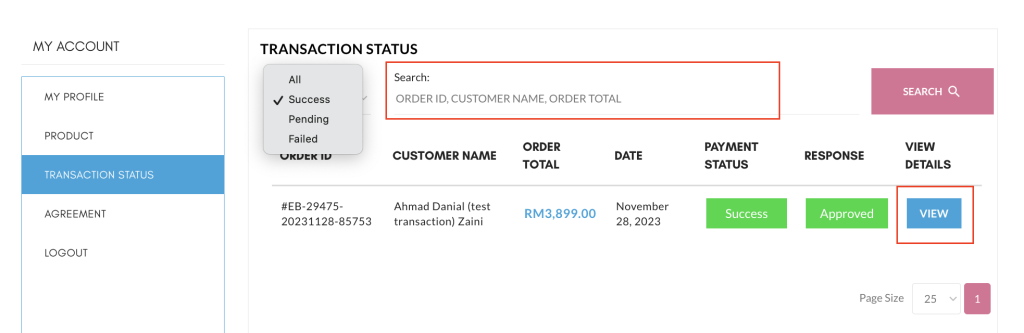
- Click “Transaction Status”
- Click “View” to view additional customer details and order details
- Transaction status –
- Pending – Customer did not proceed to pay after clicking “Pay with Payex” or did not complete filling out the payment details
- Success – Payment successful
- Failed – Payment failed
Note:
1. You can also check the transaction status from merchant’s Payex’s portal
2. However, only “Success” / “Failed” payment status would show up on the merchant’s Payex Portal
Step 5: Notification on new order and payment notification from customer
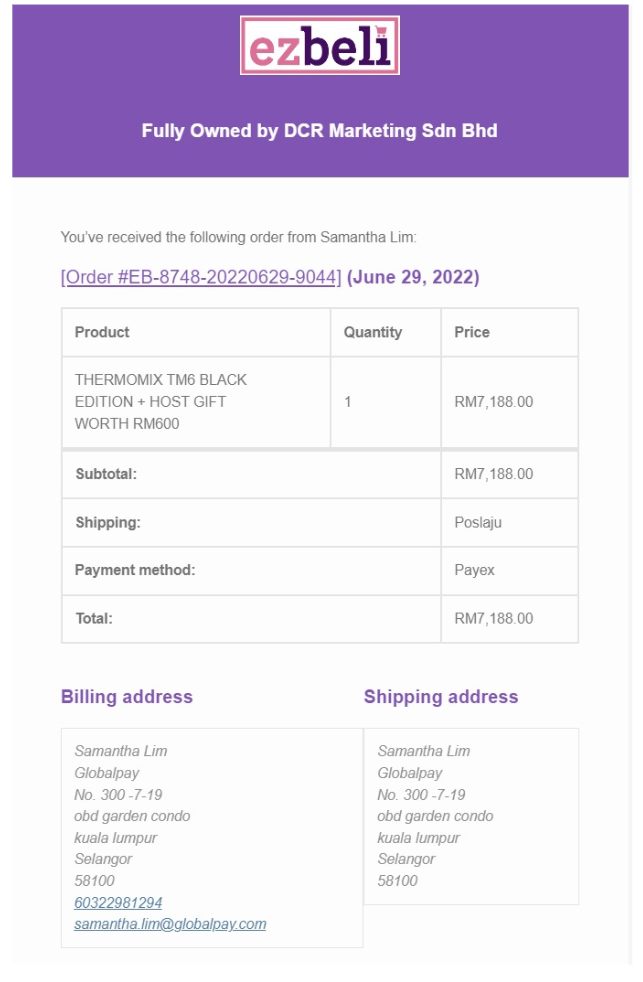
- You will receive email notification from Ezbeli for every new order
Step 6: Payex portal transaction monitoring
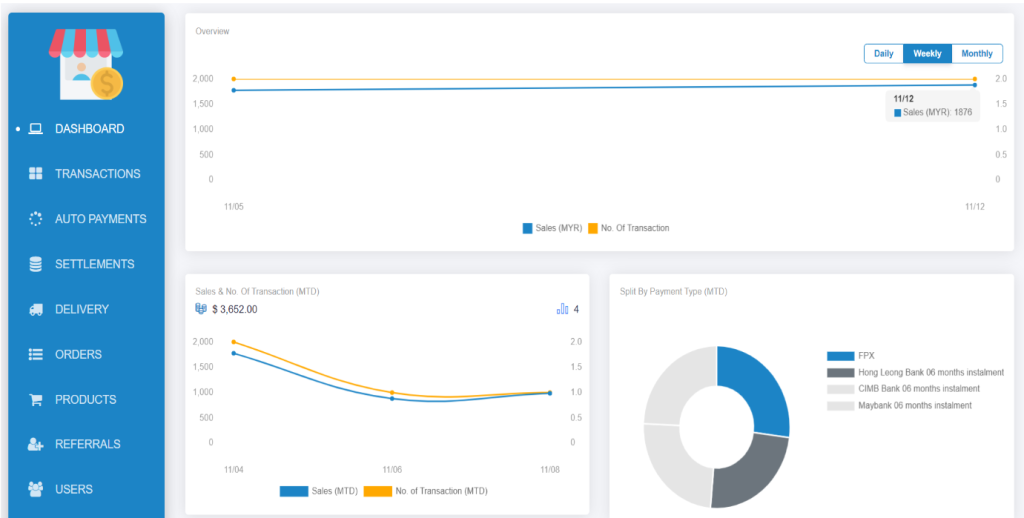
- Login to your Payex Portal
- You get to monitor your transactions on Payex Portal > Click “Dashboard” at the side bar
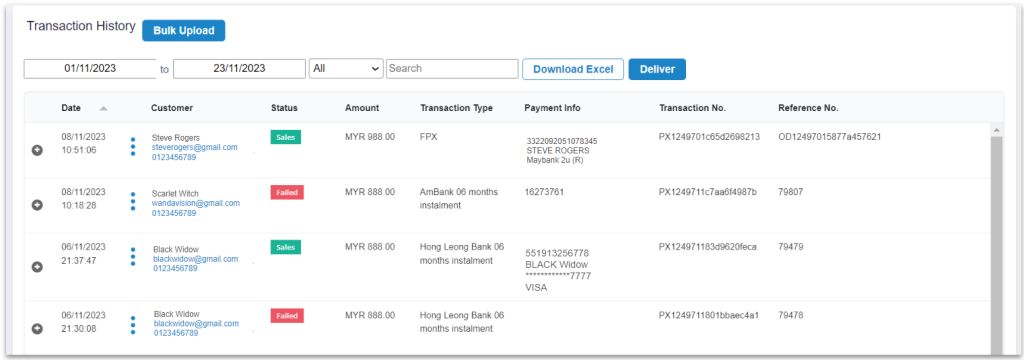
- You get to monitor your detailed transactions on Payex Portal > Click “Transactions” at the side bar
- You may also download the transactions in Excel for tracking purpose
What to take note of:
- You may refer to our customer journey guide here on How to pay via Credit Card Instalment link
- As per bank industry practice for credit card instalment payment plans, customer is able to track transaction on their monthly credit card statement. Refer here for example
Payex 0% Credit Card Installation Payment Plan (IPP) via Ezbeli is really straightforward and user-friendly. Your customer now enjoys the benefits of 0% IPP with just a few clicks!
Once you have generated the online payment link and provided it to your customer…
Step 1: Customer enters basic details at “Checkout URL”
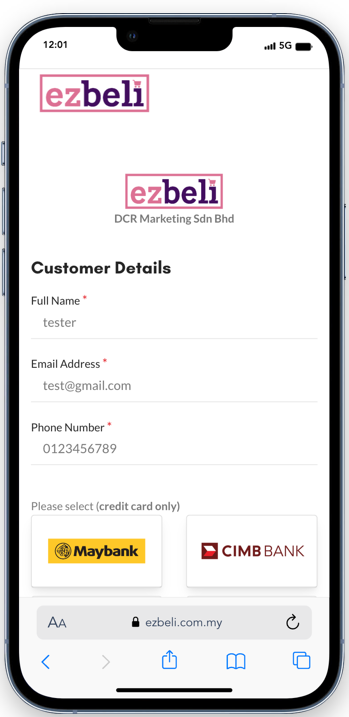
- Customer clicks on the link and enters personal information, such as name, contact number, and email address
There are two options for Step 2.
Step 2a: Customer selects preferred bank instalment available; OR
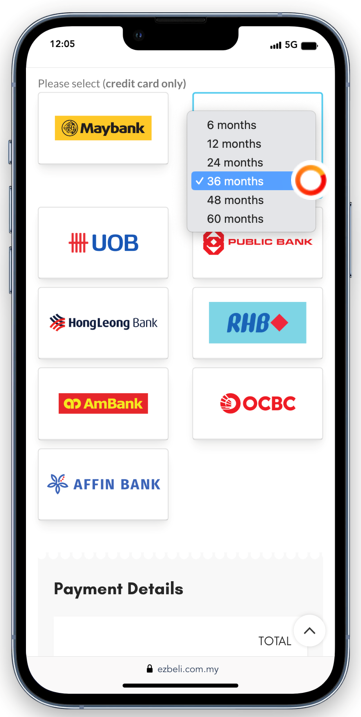
- Customer selects preferred bank and instalment period available e.g. 6 / 12 / 24 / 36 months etc
Step 2b: Customer clicks on the bank to view instalment set by merchant
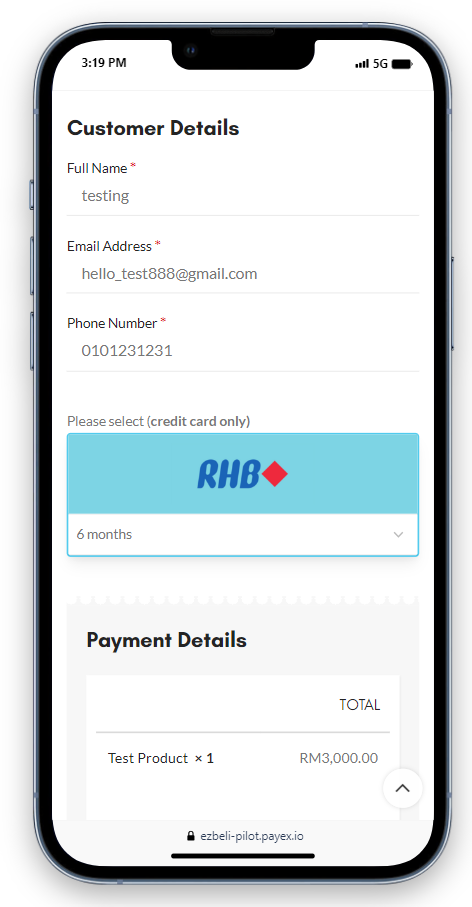
- For example above, customer can see 6 months instalment upon clicking RHB Bank. Note: Customer can only see 1 bank & 1 tenure option.
If customer wants to change bank & tenure, to contact merchant for this request.
Step 3: Customer clicks “Pay via Payex” to proceed with payment
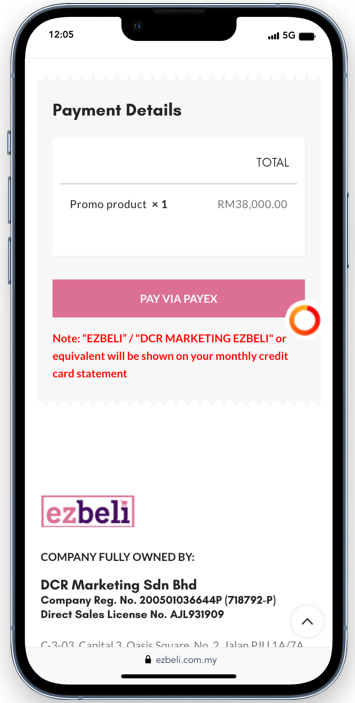
- Customer clicks on the “Pay” button to advance to the bank’s Secure Payment Page.
Step 4: Customer enters bank credit card details
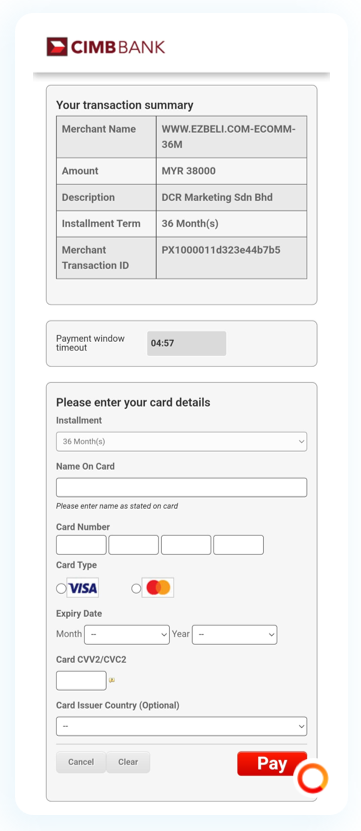
- Customer will be directed to the selected bank’s Secure Payment Page
- Customer enters bank credit card details below:
- Name on card
- Card number
- Card Type (Visa/Mastercard)
- Expiry date
- Card CVV
- Customer clicks “Pay” button and proceeds with payment
- Customer may choose to not proceed by clicking “Cancel”
Step 5: Customer performs 3D Secure verification
- The primary function of 3D Secure is to add an extra layer of verification for online card payments
- Cardholder is prompted for an additional authorisation via the bank’s mobile app or sends a one-off TAC code to cardholder’s mobile device.
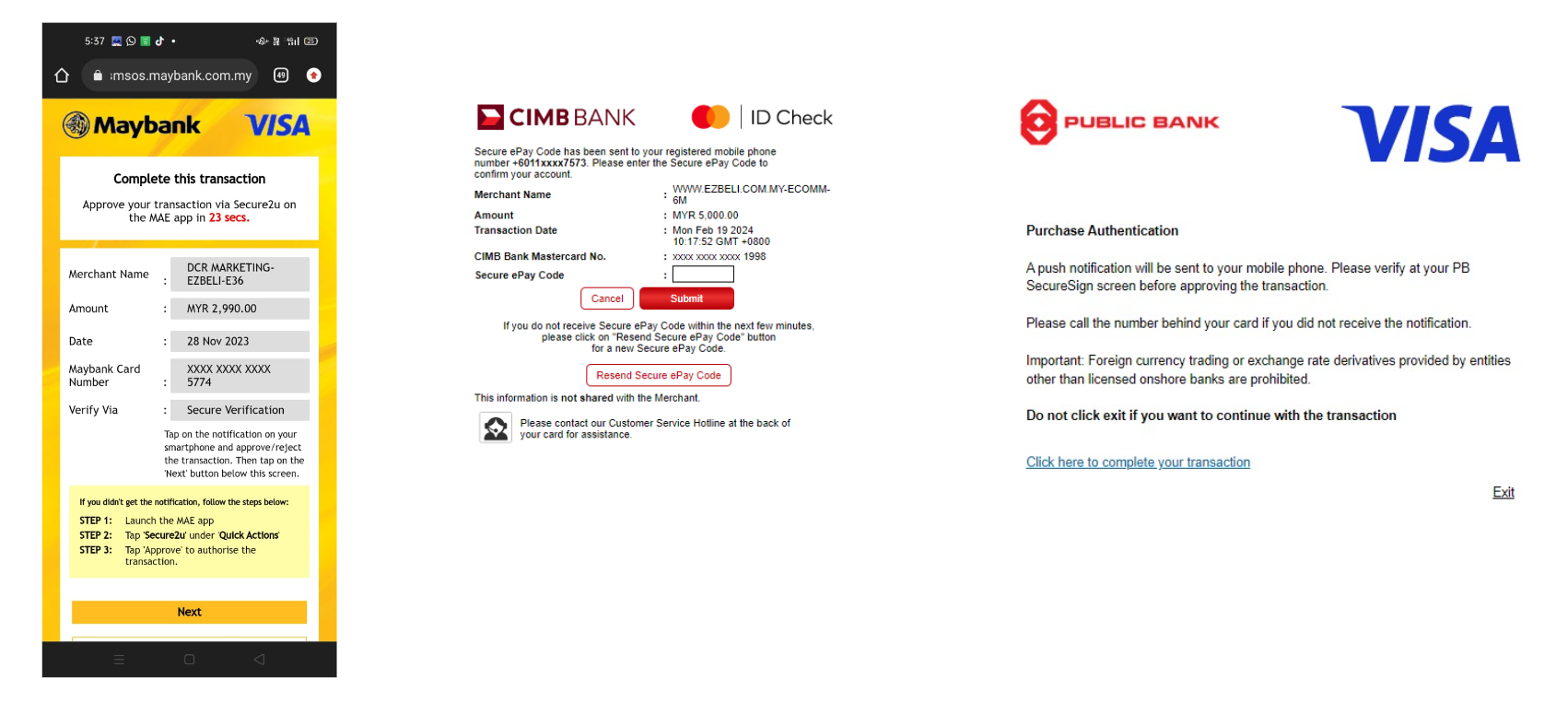
Step 6a: Customer successfully completes payment
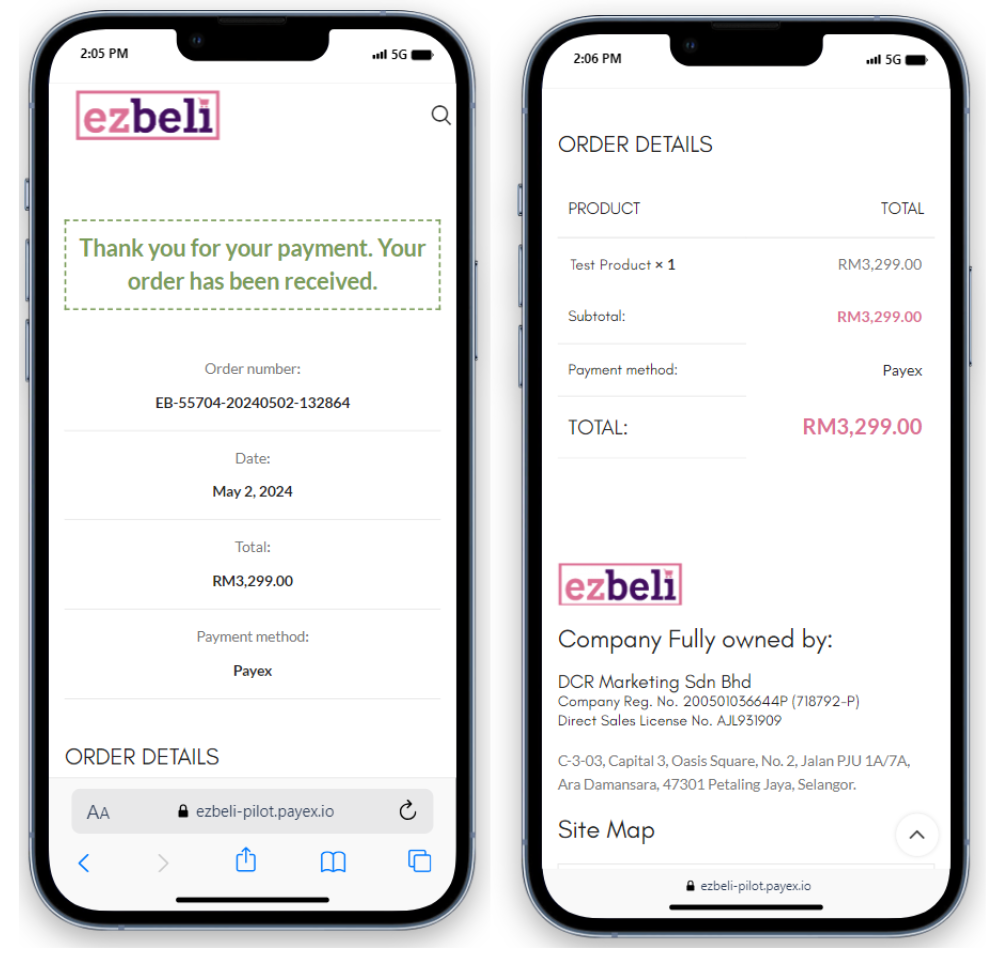
- Customer will be directed to “Payment Successful” page and will receive Ezbeli order email notification
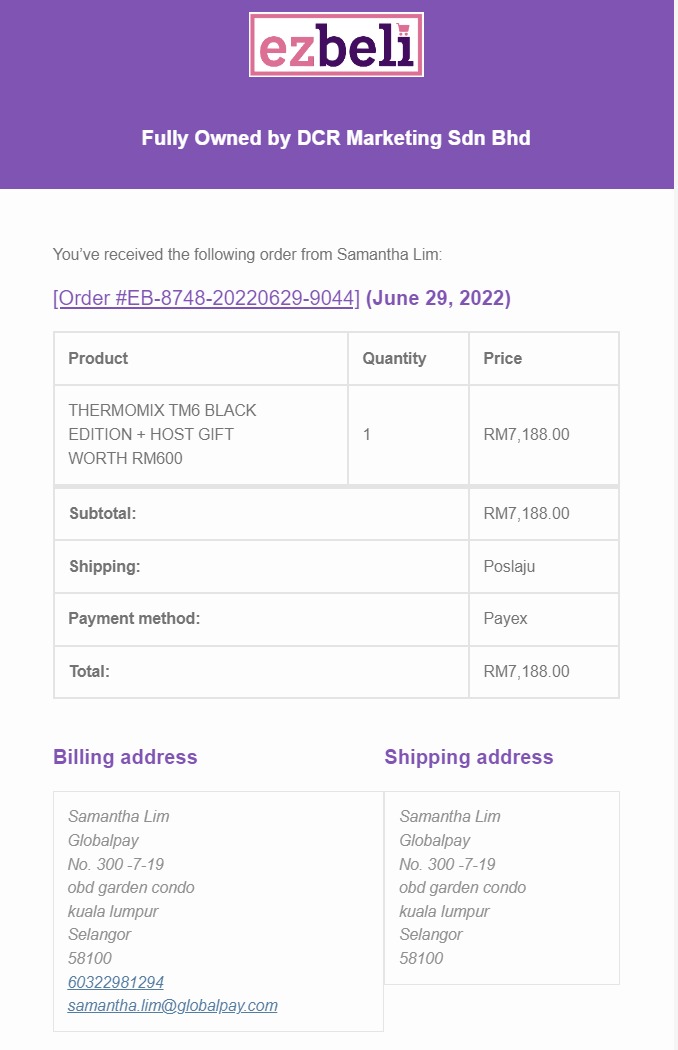
Step 6b: Customer fails to complete payment
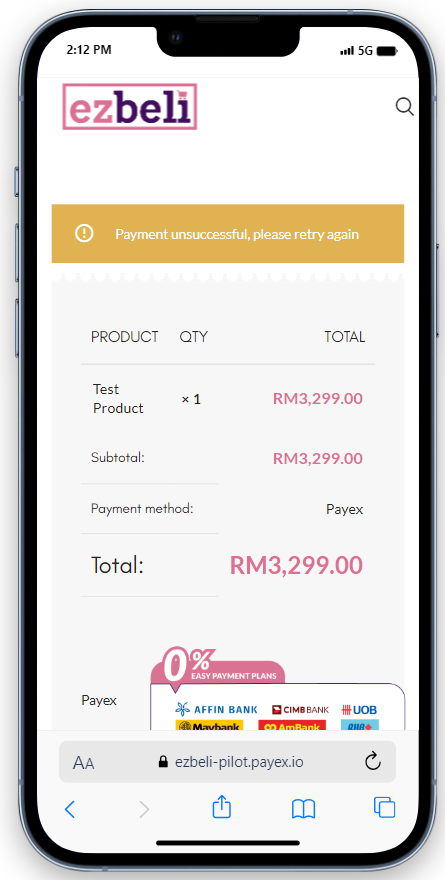
- Customer will be directed to “Payment Unsuccessful” page and will be able to retry again.
- If the customer believes there should be sufficient credit limit and no issue with the attempted card, the customer will need to contact the Bank for further clarification
- Alternatively, customer may retry with a different card or merchant may edit the payment link to a lower amount (e.g. reduce to 50% of amount)
Step 7: Customer can track transaction on monthly statement
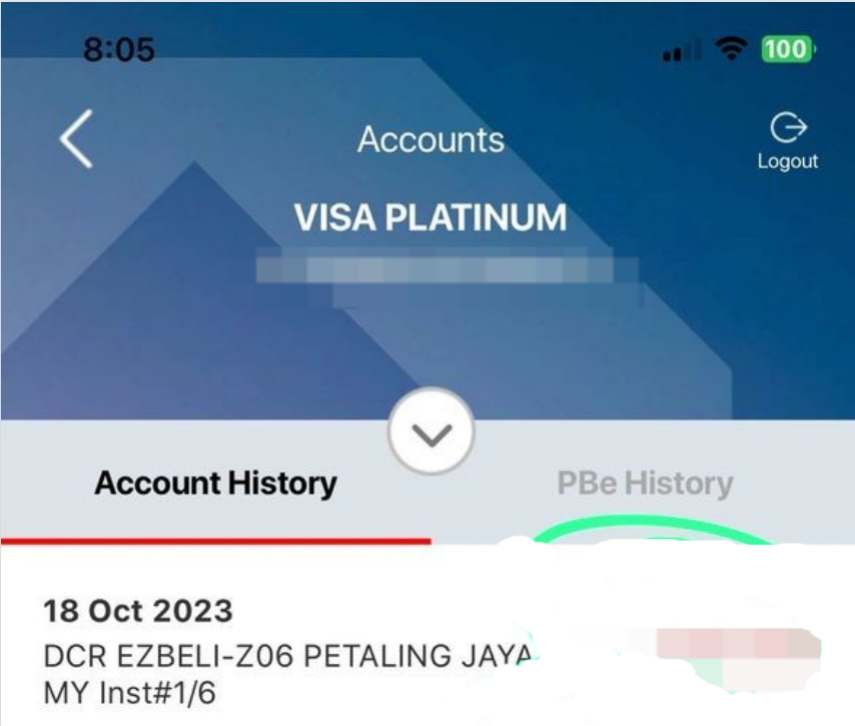
- For most banks, customers will see “DCR EZBELI” / “DCR MARKETING – EZBELI” or equivalent displayed on the credit card statement alongside the instalment amount.
See also:
]]>Once a transaction is successful, refunds are generally not allowed unless the customer cancels and the merchant agrees to manually refund after receiving settlement from Payex. Please note that the fees imposed on merchants are non-refundable.
To facilitate this process, we kindly advise customers to reach out to their respective banks for assistance.
Don’t worry! If a customer misses an installment payment, rest assured it won’t impact you. The merchant has already received the full payment upfront from Payex.
Customer instalment amounts will be reflected in each month’s credit card statement. If your customer misses a payment, the bank may charge interest or late payment fees, just like with any other regular credit card transaction.
No cancellation can be done from neither customer / merchant side. However, customers have the option to dispute a transaction if they encounter issues such as poor service or non-delivery after making a payment. In such cases, the bank will investigate the dispute by requesting evidence from both the merchant and the customer before deciding whether to approve the cancellation. It’s important to note that this process typically takes several weeks to resolve. Please note that the fees imposed on merchants are non-refundable.
To facilitate this process, we kindly advise customers to reach out to their respective banks for assistance.
Most banks will display the “full payment” as the initial transaction on your credit card statement right after a successful payment. It typically takes 3-5 working days for banks to divide the payment into monthly instalments. However, for UOB bank, the status will initially show as “pending,” and the bank will split the payments within 3-5 working days. Please advise your customers to check their statements again after this period.
Please note that if the issuer associated with instalment transactions with Visa Instalments (Standard Chartered, HSBC & Ambank), the full transaction amount will initially appear on the cardholder’s statement as a retail transaction in real time (for example, on 28/05/2025). However, the customer does not need to make any payment at this stage. The instalment plan will be set up within 5–7 working days and the instalment details will then be reflected in the cardholder’s next monthly statement. This is the standard process flow for all instalment transactions with Visa Instalments.
Check out the illustration below to understand why you might see transactions appearing as “double charges” in Ezbeli:
– Customer A’s credit card statement is issued by the bank on the 29th of every month, making it Customer A’s statement date. When Customer A makes transactions using Ezbeli instalment on January 27th, they will see the first instalment charged on that date. On January 29th, the bank considers it a new cycle, and Customer A will see the second instalment charged on their credit card statement. However, this second instalment will only be due for repayment in the next cycle (charged on first day of next statement cycle).
– Customer B’s credit card statement is issued by the bank on the 31st of every month, making it Customer B’s statement date. If Customer B also makes transactions using Ezbeli instalment on January 31st (same date as the statement date), they will see the first and second instalment charged on that date as bank considers January 31st a new cycle. However, the second instalment will only be due for repayment in the next cycle (charged on first day of the next statement cycle).
Based on the instalment amount, the Bank system will typically round up the “cents” / 2-decimal calculated after dividing the amount by the tenure. This is to ensure all subsequent months show a rounded up figure without the “cents” / 2-demical. Please refer to illustration below for clarity:
- Amount RM5,999 divided by 60 months = RM99.98
- RM5,999 – RM158 (first month)= RM5,841
Note: For first month calculation is RM99 + (RM0.98 x 60 months) = RM158 - RM5,841 divided by (balance 59 months) = RM99.00
Unfortunately, we’re unable to support this. We recommend manually refunding the customer and then sending them a fresh instalment link to pay again with the correct tenure. Please note that the fees imposed on merchants are non-refundable.
Yes, this is supported. In order to enable / disable specific instalment tenure for your account, you will need to reach out to our Merchant Support team via WhatsApp at +60192713728.
The tenure will not be displayed when the instalment amount does not meet the minimum eligible amount.
The settlement frequency is 7 working days for all banks.
No, we do not accept foreign credit cards for instalment. We only support the nine Malaysian-based bank issued credit cards.
Unfortunately, we’re unable to support this. We recommend manually refunding your customer after receiving the settlement from Payex. Please note that the fees imposed on merchants are non-refundable.
Please note that it may take until the end of the day (sometimes before midnight/12am, depending on your bank) for the funds to be credited to your bank account. If you don’t see the funds during office hours, we recommend checking again in the evening or at night as the day is not yet over.
No, we do not accept corporate credit cards for instalment. We only accept personal credit cards.